Show a Slideshow on multiple devices (Screen sharing)
Since version 7.2 it is possible to display the photos of your slideshow on an other device.
Example video
The following video shows the possibilities using an example with a laptop, two tablets, and a cell phone: https://www.youtube.com/watch?v=2ewAkMJXMpw
Functions
- Control a PicApport Slideshow running e.g. on a TV from different phones, tablets or laptops (All devices in the same WLAN).
This allows, for example, different people to display photos alternately on one or even more devices. - Display a slideshow on multiple devices at the same time
- Control a running slideshow (for example, screensaver) to display photos from your device.(This requires a special user permission)
Description
To view the slideshow on one or more devices, all devices must log in to the same PicApport server using a browser or the PicApport app.
Show remote screen
Devices that want to display photos from another device (such as a TV) must first be set to receive mode via the Show remote screen menu command on the start page.
Eventually already running shared slideshows can be selected directly to display. A click with the mouse terminates the Show remote screen mode.
Share my screen
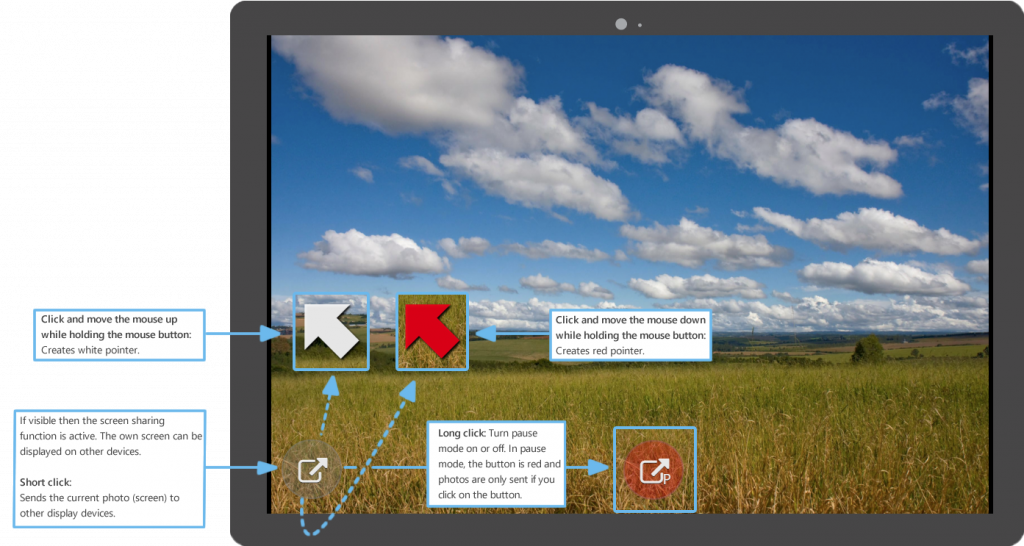
The menu function Share my screen can be executed and terminated on the start page or in the slideshow. After selecting the display devices and optionally assigning a key,
the own screen of the slideshow is displayed on other devices.
If the function is active, the ScreenControl button appears at the lower left edge. (Click on the picture to zoom in)
Extra features in the PicApport Android app
If the sharing function is used in the PicApport Android app, all pages of the PicApport app incl. Map and thumbnails can be sent to another screen.
User permissions for the share function
Permission to share own screen. (pap:feature:sharescreen:send)
This permission is required to display your own screen on a different screen.
Permission to access remote screen. (pap:feature:sharescreen:receive)
This permission is needed to display shared screens of other devices on your device.
Permission to access remote screen automatically during slideshow. (e.g. for picture frame). (pap:feature:sharescreen:autorecieve)
If a user / device has this permission, an automatic running slide show (for example, screen saver) can be taken over by any authorized PicApport user for the display of photos, without first calling the function „Show remote screen“.