Version 6.2.0 from Sep 16 2016
Infrastructure
- Documentation has been completely revised and partially restructured.
- We now have a new Wiki: PicApport Installation Guide
- In the User Manual we now have an interactive Site.Map (you can click on the pages) for the Web-Frontend: PicApport – Navigator (Webinterface)
- Download: To simplify future updates (especially for our Linux users) we have removed the version number from the .jar filenames. For future updates
you just have to replace the .jar file without any changes to existing scripts.
Web-Frontend
Thumbnails
General
If opened from a page outside of PicApport the navigation button on the top left now jumps to home rather than back.
If a photo contains GPS-metadata it will be displayed on the thumbnail as as pin (click on the pin to show the image on the map)
Also the rating is displayed if the bottom edge of the photo has been clicked
Just click on the image below to see more details about selection and markers
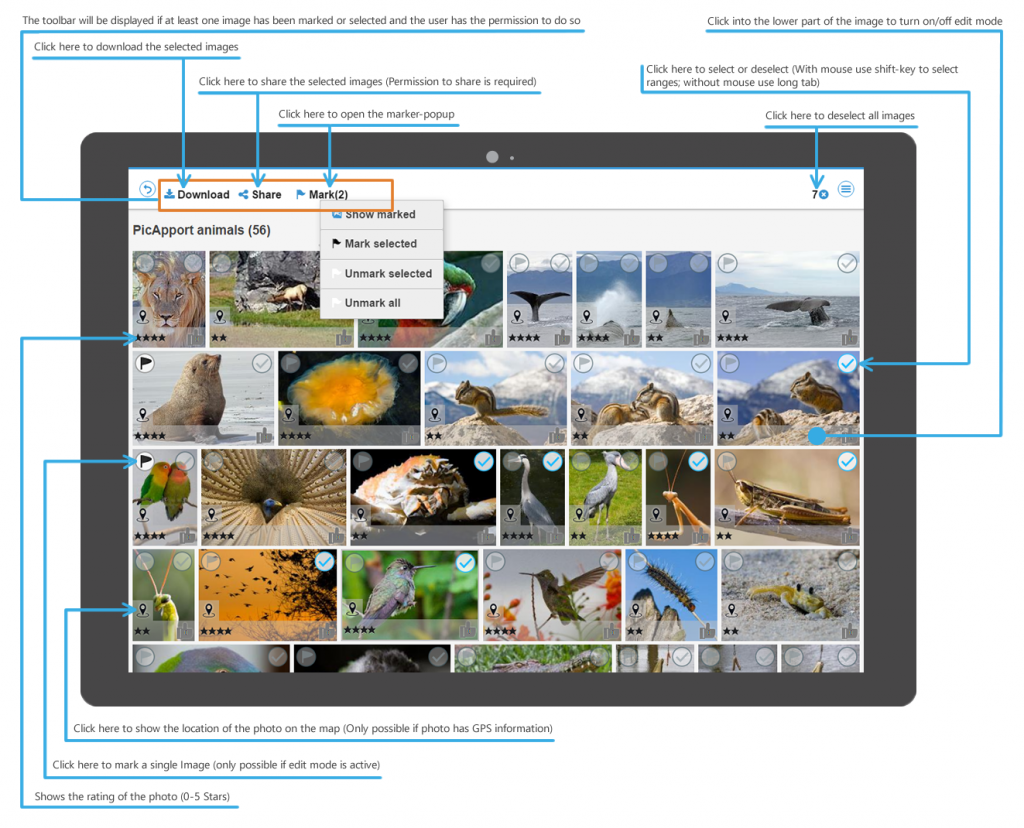
New feature select thumbnails
- The following new permissions have been defined: See also: PicApport – Usermanagement
- pap:feature:thumbs:canselect (default for version update and new = true)
- pap:access:share (default for version update and new = if pap:admin:user=true then pap:access:share=true)
- pap:admin:shares (default for version update and new = if pap:admin:user=true then pap:admin:shares=true)
- All selected photos can be downloaded as a zip-file with just one click.
- Toolbar in Thumbnails – visible only if at least one thumb has been selected or marked
- Tabhold on thumb does not open the slideshow anymore (Tab or click still works)
- Tabhold on thumb-checkbox on top right: if nothing has been selected so far: select all
- Tabhold on thumb-checkbox on top right: select/deselect range
- SHIFT-CLICK on thumb-checkbox on top right select/deselect range
- STRG+A (select/deselect all)
- STRG+E (Edit mode: toggle show rating and likes)
- STRG+P (Pin/Mark current selected photos)
- STRG+R (Refresh/Reload Page)
- STRG+ALT+P (how marked photos)
- STRG+U (UnPin/Merke currently selected photos)
New feature „mark„
- Can be used to „collect“ photos from different queries or directories to share or download them.
- Marks are temporary, they „expire“ after logging out of the session.
- New search operator $marked
- Mark photos does not make sense for shared links. This is the reason why its not available there
- Toolbar functions for marking photos:
- Show marked(Pinned) photos (STRG-ALT-P)
- Mark(Pin) selected (STRG-P)
- Unmark selected (STRG+U)
- Unmark all
New feature: Share photos:
- Creates a static link to the currently selected photos. This only makes sense if the PicApport-Server can be accessed over the internet e.g with dyndns.
Optionally, each link can have an expiration date. A link that has been generated with this function contains exactly the currently selected photos and can
not be changed after the link has been created. Created links can be edited with the user-management. Group: Shared Links.
From there links can be regenerated or deleted. - URL: picapport#thumbs|map|slideshow?sid=generated-ID
- Option to directly open your email-client with the generated URL
- Option to generate IFrames (nice feature to create a map and embed it on other Web-Sites)
- Links and mails can be regenerated at any time with the user management.
- Server Parameter
- Parameter: server.max.concurrent.shares.per.session
Number of shared links that can be opened at the same time
in a browser session (Tabs) - Parameter: server.external.address.for.shared.links
Server-address for the generated links (This can also easily be done with the user-management
Group: Shared links -> Set current URL for Links)
- Parameter: server.max.concurrent.shares.per.session
Slideshow
Popup menu will be closed automatically when the next photo is displayed or after 5 seconds
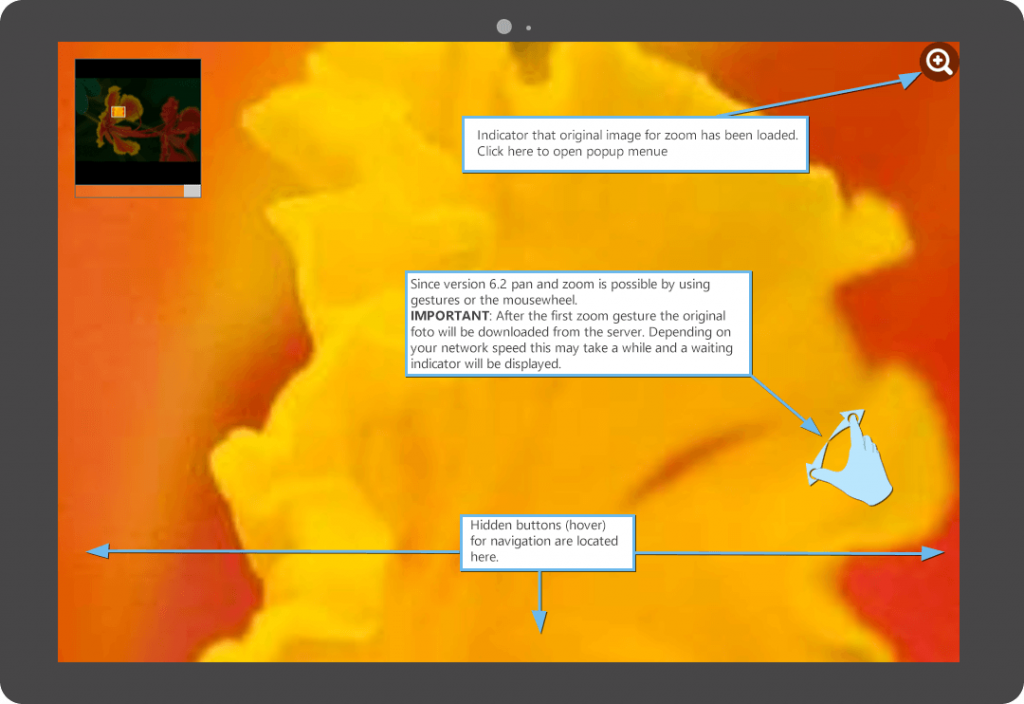
- There is a new button on the bottom (middle) of the screen that opens the navigation bar (saves one click)
This button is only visible if the mouse is moved over it (hover) - New feature pinch to zoom and mouse wheel support for zoom
Original image will be loaded automatically when gesture or wheel is recognized.
- A waiting icon may be displayed until the original photo has been loaded. (Depends on the network speed)
The swipe gesture to display the next / previous photos are disabled when the original photo is visible.
(magnifying glass on top right) Instead the zoomed part of the image can be moved.
The popup-menu will be opened if you click on the magnifying glass.- Server Parameter to control the zoom function:
client.viewer.maxzoom (default = 1000)
client.viewer.snapview (default = true)
client.loadoriginal.with.gesture (default = true)
Just click on the following image to learn more about the new zoom function.
Managing dynamic collections
- Icons of dynamic collections can now be changed if you have the permission.
This requires exactly one photo to be marked (see new feature mark photos). If a photo has been marked it can
be set via the context menu of the dynamic collection: „replace thumb with marked photo“ New permission to hide global dynamic collections for a user (Default see below)
With this feature it is now possible to have user-groups that just see collection of their own group
pap:feature:dyncol:glob (Default for version update and new = if pap:feature:dyncol:view=true then pap:feature:dyncol:glob=true)- A user with the permission: pap:admin:group –> „Permission to create, update or delete a user-group.“
can now manage dynamic collections (delete or change thumbs) of groups even if he is not a member.
This user can also see all collections of all groups (even if he is not a member) - A user with the permission: pap:admin:user –> „Permission to create, update or delete a user.“
can now manage dynamic collections (delete or change thumbs) of all users.
Map view
- If opened from a page outside of PicApport the navigation button on the top left now jumps to home rather than back.
- Minor problem if filtered image from slideshow was displayed has been solved
Directory browser
If for the current user a metadata filter has been set, from now on only directory’s are displayed that contains photos for this user.
Also the number of available photos is correct now for this user.
General
All dialogs in the Web frontend can now be terminated with the ESC-key without changing the page
- In future versions (available after 6.2 has been installed) the update of the server will not be indicated with a blocking dialog anymore. Instead a progress bar will be displayed.
- The built-in online help can now be accessed with an external link
- Logging cleaned. The Logon-Logging does now always contain a date
- Spell checking
- A problem with escaping of special characters in queries has been solved (/=&….)
New feature User-Options
- Therefore a new permission has been defined: pap:admin:useroptions (default for version update and new = if pap:admin:changeownpassword=true then pap:admin:useroptions=true)
- Due to the growing number of PicApport users we receive also a lot of wishes.
User options allow us to implement user specific functions without overloading the graphical user interface - In Version 6.2 you can control wether the accordion controls of the landing page should be opened automatically on startup.
- Just copy the following Option-Command in the global search field and press enter
- paSetOption: home.group.options=open
- paSetOption: home.group.dyn.collections=open
- paSetOption: home.group.local.collections=open
- paSetOption: home.group.folders=open
- paSetOption: home.group.upload=open
- To delete the option use „normal“ instead of „open“
- Just copy the following Option-Command in the global search field and press enter
- In future version we plan use this feature also for other functions.
Server
New parameter to control plugins: plugin.shadow.path (Path to shadow or substitute files) (*.$.jpg Files))
If set on the next server start all existing $.jpg files will be moved to the new directory. New shadow files will be created there.
Please make sure that this directory is not a child of one of your root directories
Example: plugin.shadow.path=E\:\\picaport\\shadow- Only if PicApport is used under MAC OS:
- If started the first time under Mac OS without a configuration the default port will be set to 8080.
- It could have happened that the server GUI under MAC OS was blocking. This should be solved now.